Merchant Auto-Sweep, Fund Withdrawal & Distribution Strategy Configuration Guide

This guide will walk you through configuring the auto-sweep, fund withdrawal, and distribution strategies in the merchant admin console to automate your fund management.
1. Access the Strategy Settings Page
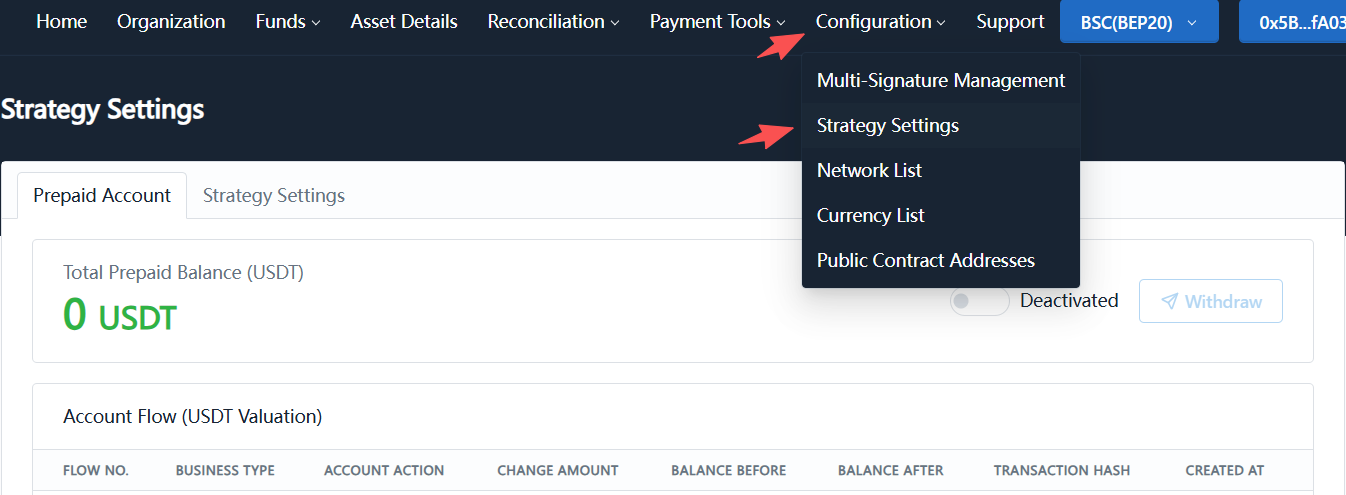
Log in to the admin console and navigate to:
Configuration → Strategy Settings
On this page, you can configure prepaid accounts and strategy settings (sweeping strategy, fund withdrawal strategy, withdrawal/distribution strategy).
2. Enable the Prepaid Account
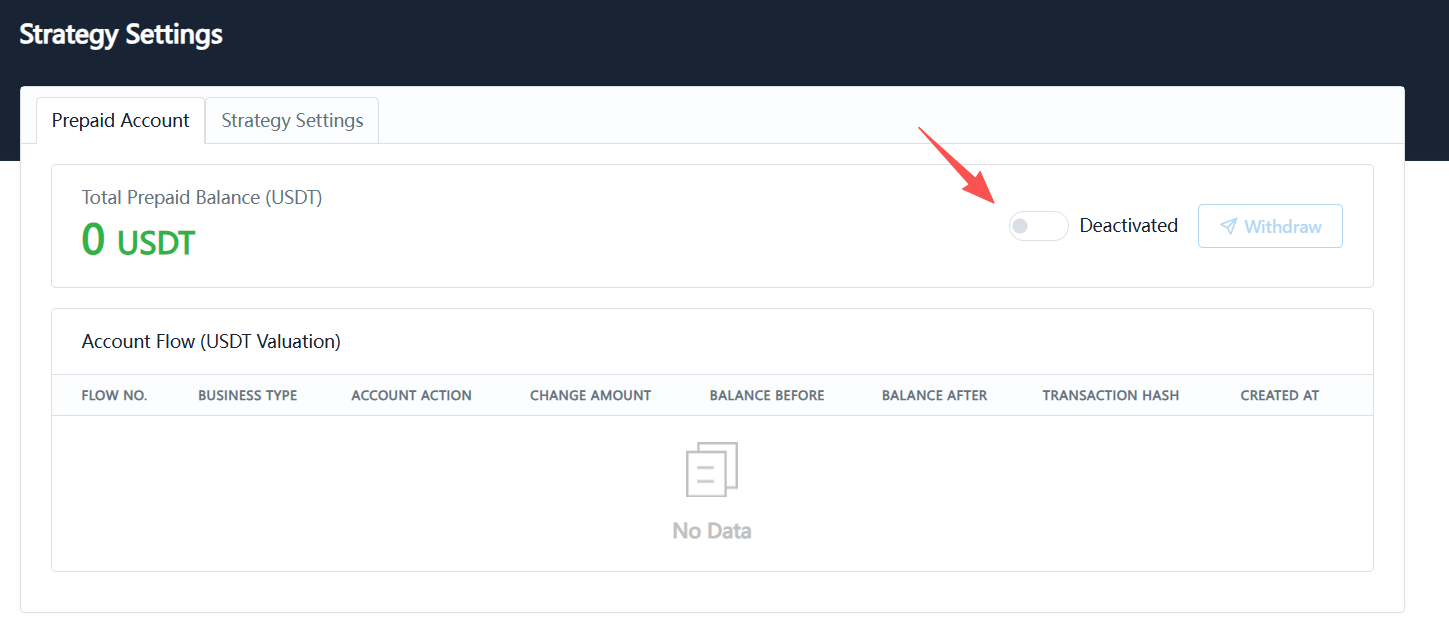
By default, you will land on the Prepaid Account tab.
If the status shows Disabled, toggle the switch on the right to enable it.
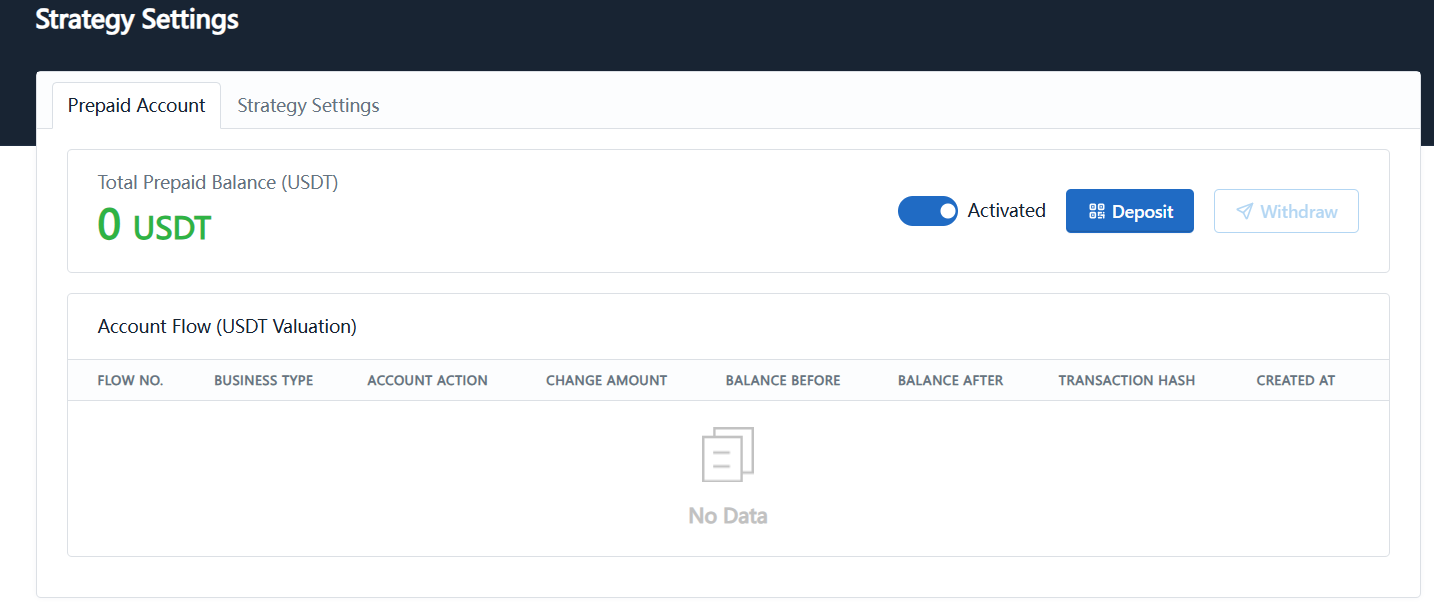
Once enabled, the status will change to Enabled and a Deposit button will appear.
3. Deposit to the Prepaid Balance
Click the Deposit button to open the deposit dialog.
Steps:
- Select a deposit network, e.g. BSC(BEP20);
- The system will generate a deposit address and QR code for the selected network;
- Click Copy to copy the deposit address;
- Send USDT to this address from your wallet or exchange;
- After the deposit is confirmed, refresh the page to check your balance.
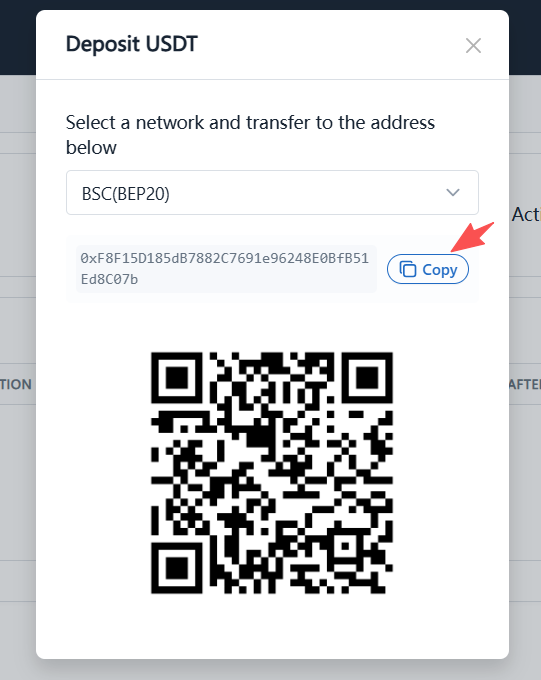
Make sure to select the correct network. If the page shows BSC(BEP20), you must send via the BSC(BEP20) network. Do not deposit any tokens other than USDT.
4. Configure the Sweeping Strategy
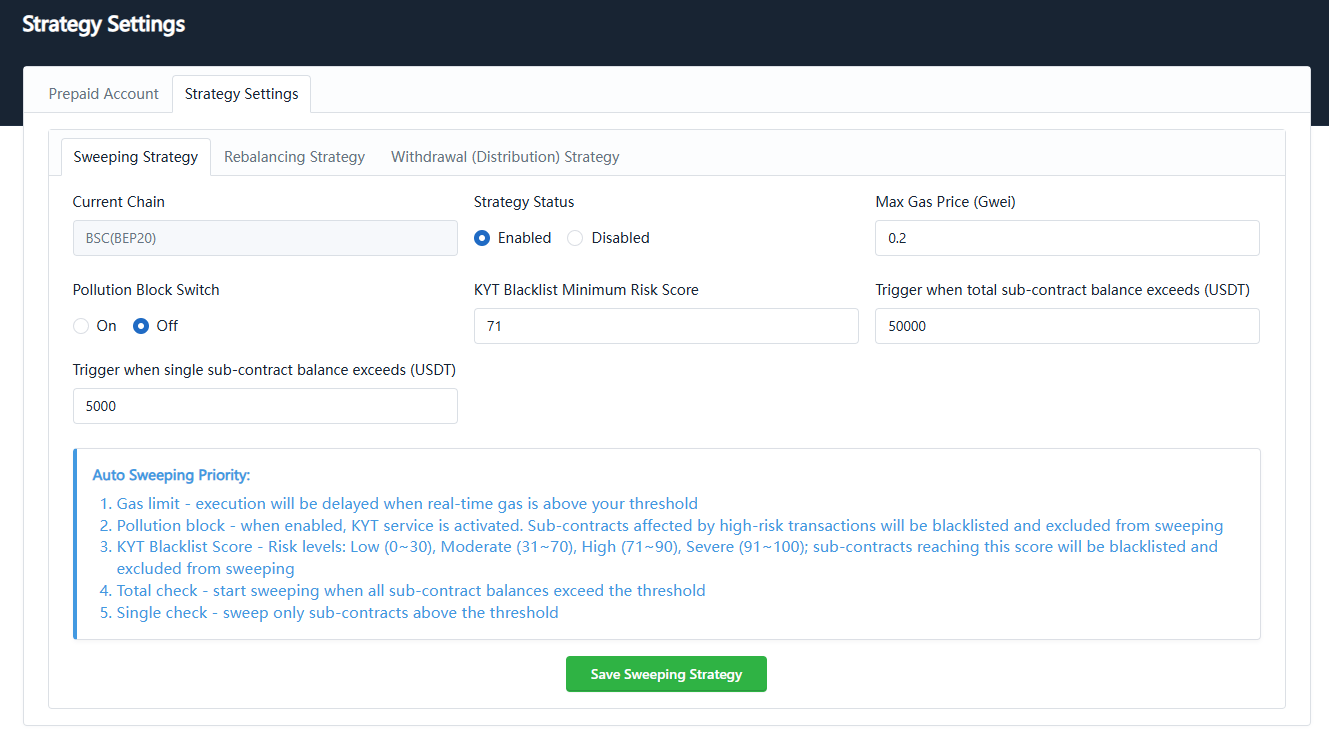
Navigate to Strategy Settings and select the Sweeping Strategy tab.
The sweeping strategy automatically collects funds from sub-contracts when their balances reach the configured thresholds.
Configurable items:
| Setting | Description |
|---|---|
| Current Chain | The blockchain network being configured, e.g. BSC(BEP20) |
| Strategy Status | Enable or disable the strategy |
| Max Gas Price | Non-TRON chains only. If the on-chain real-time gas price exceeds this value, execution will be delayed (unit: Gwei) |
| Pollution Blocking | When enabled, KYT service is activated. Sub-contracts affected by high-risk transactions will be blacklisted and excluded from sweeping |
| KYT Blacklist Min Risk Score | Risk levels: Low (0~30), Medium (31~70), High (71~90), Severe (91~100); sub-contracts reaching this score will be blacklisted and excluded from sweeping |
| Total Sub-Contract Balance Threshold | Trigger sweep when the cumulative balance of all sub-contracts exceeds this amount |
| Single Sub-Contract Balance Threshold | Trigger sweep when a single sub-contract balance exceeds this amount |
After configuration, click Save Sweeping Strategy.
5. Configure the Fund Withdrawal Strategy
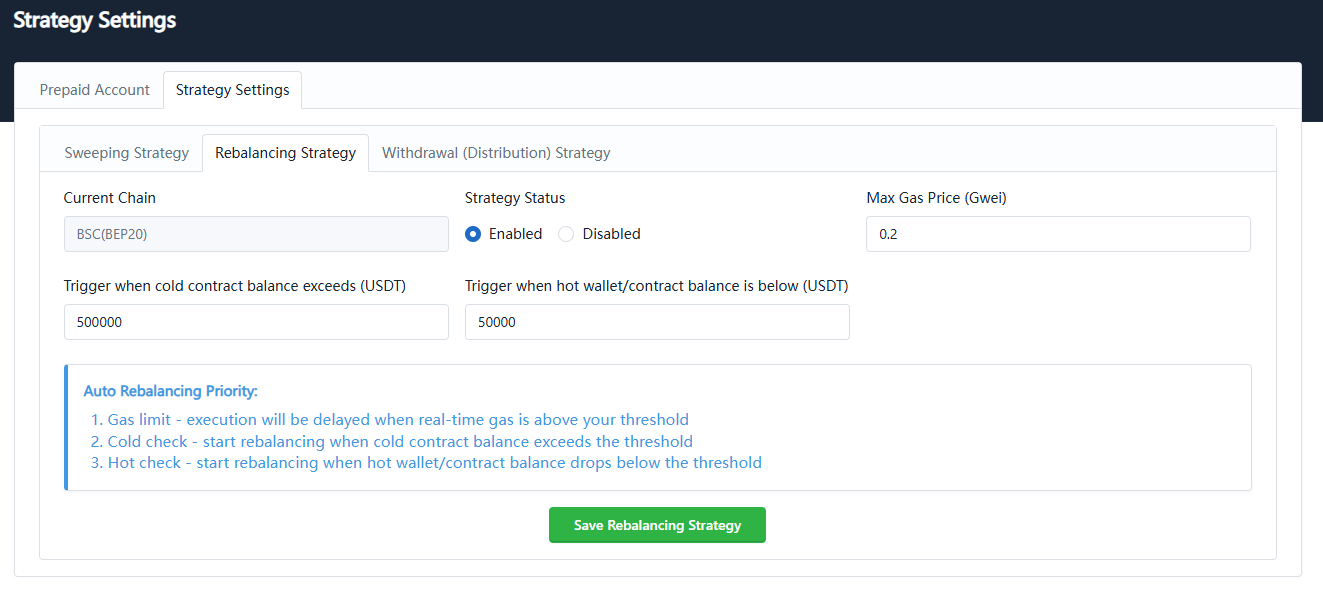
Select the Fund Withdrawal Strategy tab.
The fund withdrawal strategy automatically triggers withdrawals when cold or hot wallet balances reach the configured thresholds.
Configurable items:
| Setting | Description |
|---|---|
| Current Chain | The blockchain network being configured |
| Strategy Status | Enable or disable the strategy |
| Max Gas Price | Non-TRON chains only. If the on-chain real-time gas price exceeds this value, execution will be delayed (unit: Gwei) |
| Cold Vault Threshold | Trigger withdrawal when the cold vault balance exceeds this amount |
| Finance Hot Contract Threshold | Trigger withdrawal or refill when the finance hot contract/hot wallet balance falls below this amount |
After configuration, click Save Fund Withdrawal Strategy.
6. Configure the Withdrawal (Distribution) Strategy
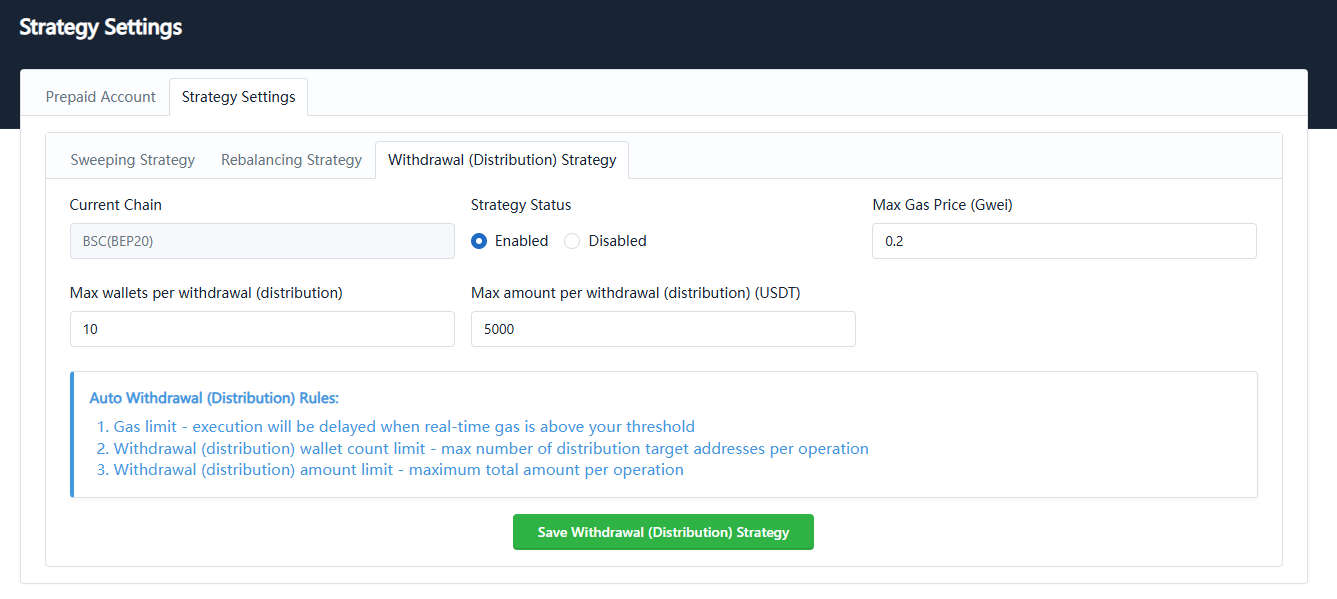
Select the Withdrawal (Distribution) Strategy tab.
The withdrawal/distribution strategy limits the number of wallets and maximum amount processed per task to prevent excessive processing in a single run.
Configurable items:
| Setting | Description |
|---|---|
| Current Chain | The blockchain network being configured |
| Strategy Status | Enable or disable the strategy |
| Max Gas Price | Non-TRON chains only. If the on-chain real-time gas price exceeds this value, execution will be delayed (unit: Gwei) |
| Max Withdrawal (Distribution) Wallets Per Task | Maximum number of wallets processed per task run |
| Max Withdrawal (Distribution) Amount Per Task | Maximum amount allowed per task run |
After configuration, click Save Withdrawal (Distribution) Strategy.
To use the distribution feature, please contact the platform for pre-configuration and transfer funds to the designated distribution address.
7. Create Sub-Contract Addresses
Navigate to:
Funds → Sub-Contracts
On this page, you can view existing sub-contract addresses, types, statuses, balances, and last update times.

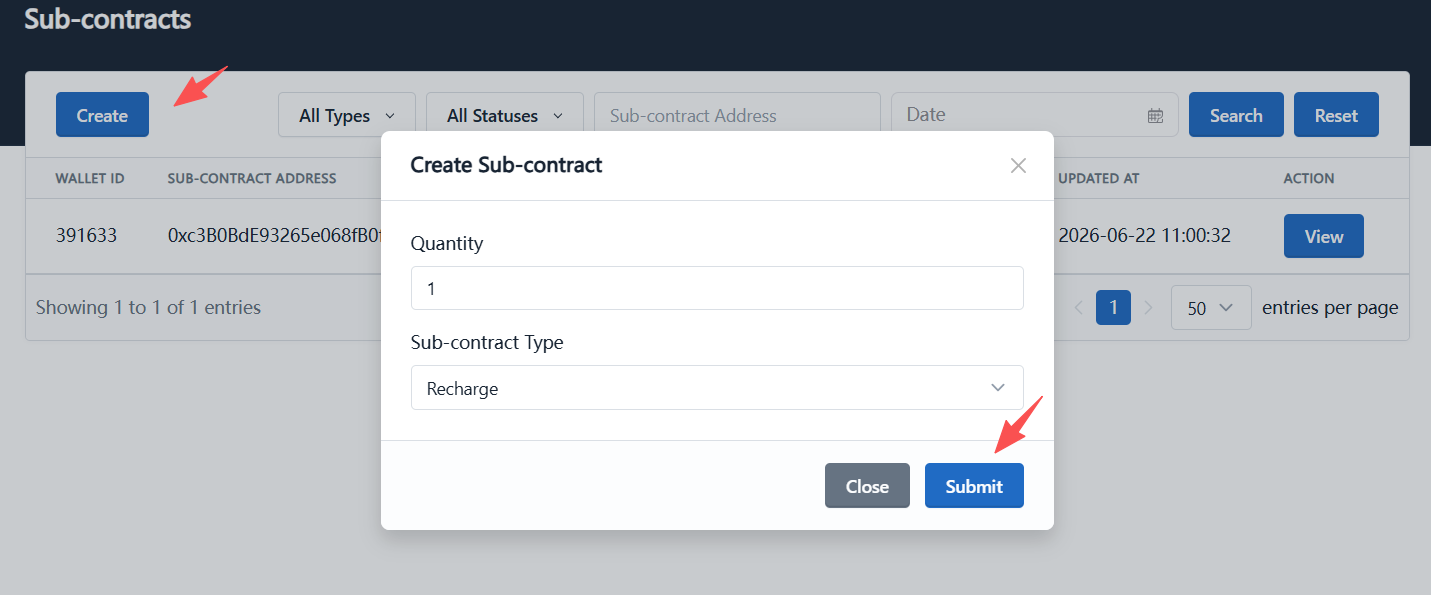
8. Batch Create Sub-Contracts
Click the Create button to open the sub-contract creation dialog.
Fill in the following:
| Field | Description |
|---|---|
| Quantity | Number of sub-contracts to create |
| Sub-Contract Type | Choose from Recharge, Payment, etc. |
| Submit | Confirm and create sub-contracts |
After filling in, click Submit.
9. Sub-Contract Types
1. Recharge Sub-Contract
Recharge sub-contract addresses can be provided directly to users for deposits.
Use cases:
- Assign a fixed deposit address to users;
- Users transfer USDT directly to this address;
- The system monitors incoming funds and sweeps them according to the strategy.
2. Payment Sub-Contract
Payment sub-contracts are used for payment pool scaling. Merchants generally do not need to create them manually.
When a merchant creates a payment link, the system automatically generates a payment sub-contract address.
10. Complete Operation Workflow
- Log in to the admin console with a super admin account;
- Navigate to System Configuration → Strategy Configuration;
- Toggle on the Prepaid Account switch;
- Click Top Up, select the network and copy the deposit address;
- Send USDT to the deposit address via the corresponding network;
- Refresh the page after deposit to confirm the prepaid balance has increased;
- Navigate to Strategy Settings;
- Configure the Sweeping Strategy;
- Configure the Fund Withdrawal Strategy;
- Configure the Withdrawal (Distribution) Strategy;
- Click the corresponding save button after configuring each strategy;
- Navigate to Funds → Sub-Contracts;
- Click Create;
- Select the sub-contract type and enter the quantity;
- Click Submit to generate sub-contract addresses;
- Provide the recharge sub-contract addresses to users for deposits.
11. Important Notes
- Before using auto-sweep, fund withdrawal, or distribution strategies, you must enable the prepaid account and complete a top-up.
- Prepaid account fees are deducted from the balance for each on-chain transaction.
- Always select the correct network when topping up to avoid loss of funds.
- Strategies must be saved after configuration, otherwise they will not take effect.
- Gas price limit: For non-TRON chains, if the on-chain real-time gas price exceeds the configured value, execution will be delayed.
- When pollution blocking is enabled, KYT service is activated. Sub-contracts affected by high-risk transactions will be blacklisted and excluded from sweeping.
- KYT blacklist risk levels: Low (0~30), Medium (31~70), High (71~90), Severe (91~100). Sub-contracts reaching the configured score will be blacklisted and excluded from sweeping.
- Recharge sub-contract addresses can be provided directly to users for deposits.
- Payment sub-contracts are for payment pool scaling; most merchants do not need to create them manually.
- When creating payment links, the system automatically generates payment sub-contract addresses.
- The distribution feature requires platform pre-configuration and funds must be transferred to the designated distribution address.
- If the prepaid balance is insufficient, auto-sweep, fund withdrawal, or distribution tasks may not execute properly.